Setting up Reminders for Your Tasks
You can set up reminders for any of your tasks. You can add task details, due dates/times, and select the contact method for where you'd like to receive the reminder. This makes sure you don't forget to complete any important tasks.
To add a reminder to a task
-
From the overview page, click All Tasks.
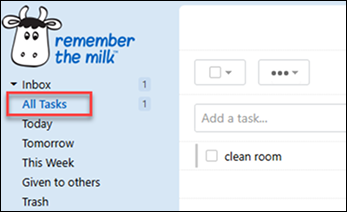
-
Click a task you want to add a reminder to.
-
Click Add Field.
-
From the drop-down, click Reminder.
-
Select one of the following contact methods:
-
Email
-
Instant Messenger
-
SMS
-
Tip: Click on the listed contact methods to learn how to set them up.
Note: Desktop reminders only display on supported browsers (at least Chrome 20 or Safari 6).
Adding Due Dates to Tasks
You can customize your task reminders with due dates. You can choose to receive a reminder on or before the due date (as well as the number of days or weeks in advance of the due date).
To add a due date to your task
-
After setting up the reminder and contact method, choose On the due date or Before the due date.
-
If you select Before the due date, select Days or Weeks.
-
Enter the number of days or weeks you'd like to be reminded in advance of the due date.
Adding Due Times to Tasks
You can customize your task reminders with due times. You can choose to receive the reminder at the due time or before the due time (as well as the number of minutes or hours in advance of the due time).
To add a due time to your task
-
After setting up the reminder and contact method, choose At the due time or Before the due time.
-
If you select Before the due date, select Minutes or Hours.
-
Enter the number of minutes or hours you'd like to be reminded in advance of the due date.
Still need Help?